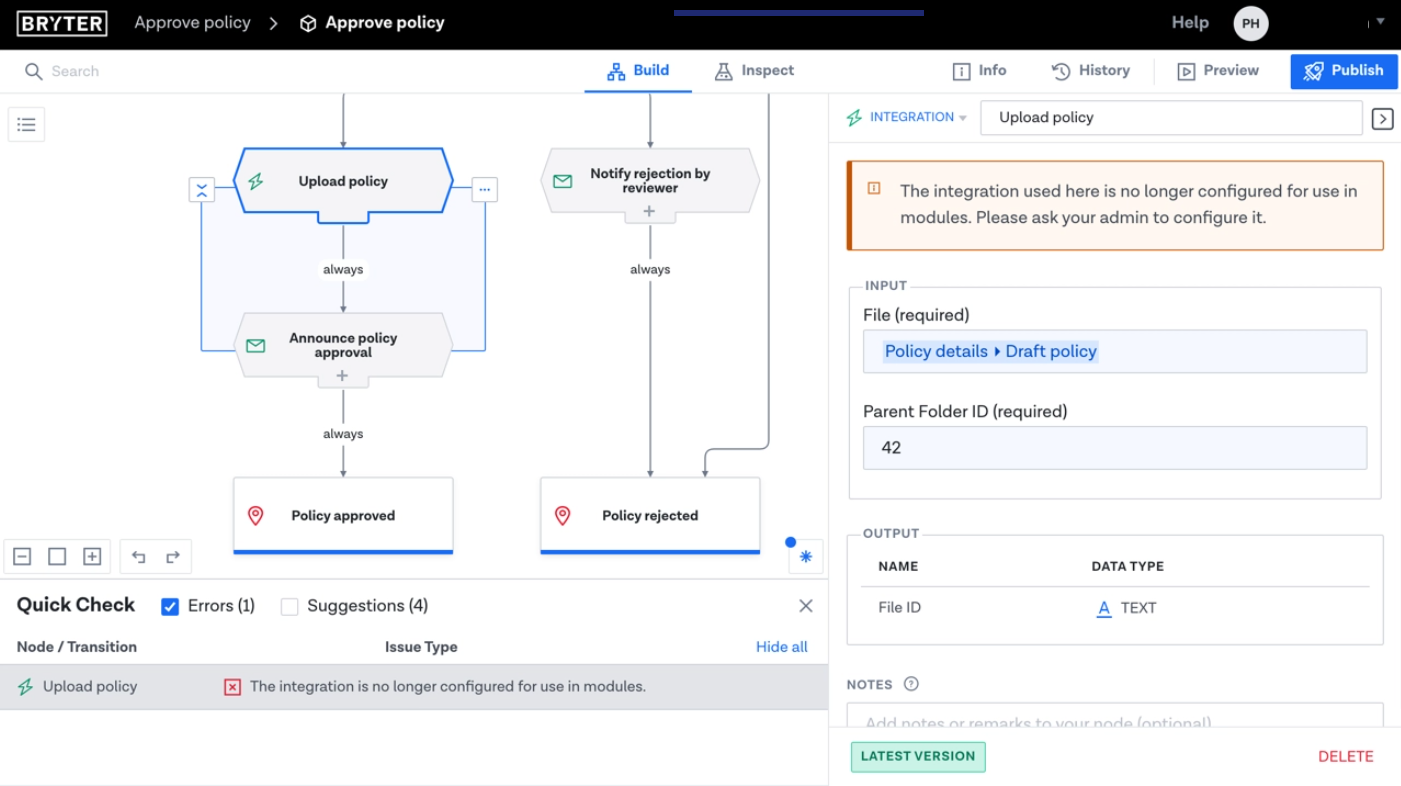
When an integration is not configured correctly or was removed by an Admin, an error is shown in the module editor.
In the editor, the selected integration node’s configuration sidebar shows an error when the configuration is missing. A missing or faulty configuration leads to an error in the published module which thus cannot be executed.
This error will be displayed in the integration action and in Quick Check. Authors can see if an integration has been deleted and should reach out to their admin to notify the missing integration configuration.
When authors run their modules in the TEST environment, they can see error messages for integration actions that fail to execute. This makes it easier for authors to find and resolve issues with broken integration configurations.
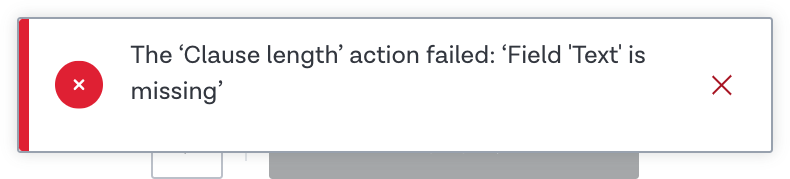
Integration error messages in the published module interface also display a unique ID for tracking the error. This will help you (via the Integration Errors tab, see below), your Customer Success Manager, and the BRYTER product team to find and correct errors quickly.
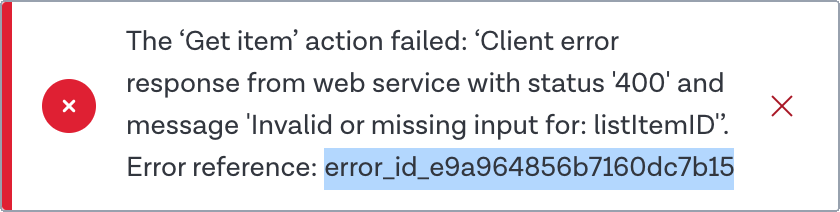
Integration execution errors normally only tell end-users that something went wrong, to avoid leaking any implementation details, and because the end-user can’t fix the problem themselves.
The end-user interface (the published module in LIVE) omits more detailed information in LIVE mode, and only shows more detail for authors in TEST mode.
From a module’s Logs & Statistics page, you can find all Integration Errors that have occurred recently. Copy and paste the error ID from the error message into the search box to find the error with more information. (Make sure you choose the correct environment from the dropdown next to the module’s name.)

Note that integrations can only return files with maximum of 20 MB. If you see an integration node having file output failing, check that the file does not exceed that limit.